AI Baby Face Filter Video
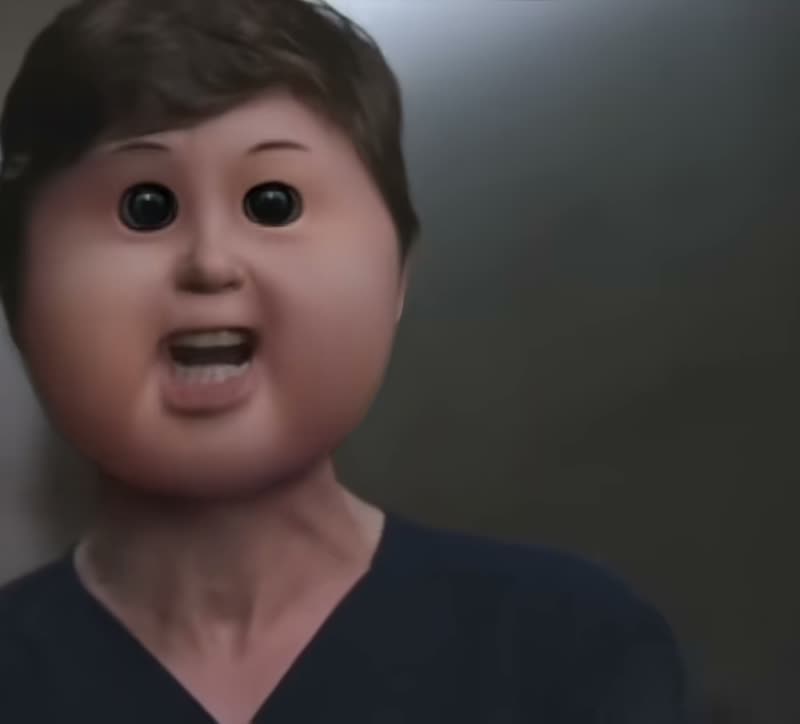
Turn one adult portrait into a doll-face reveal with round cheeks and tiny eyes.
- 1 adult photo
- 6 seconds
- Before-and-after reveal
Create · AI Baby Face Filter
READY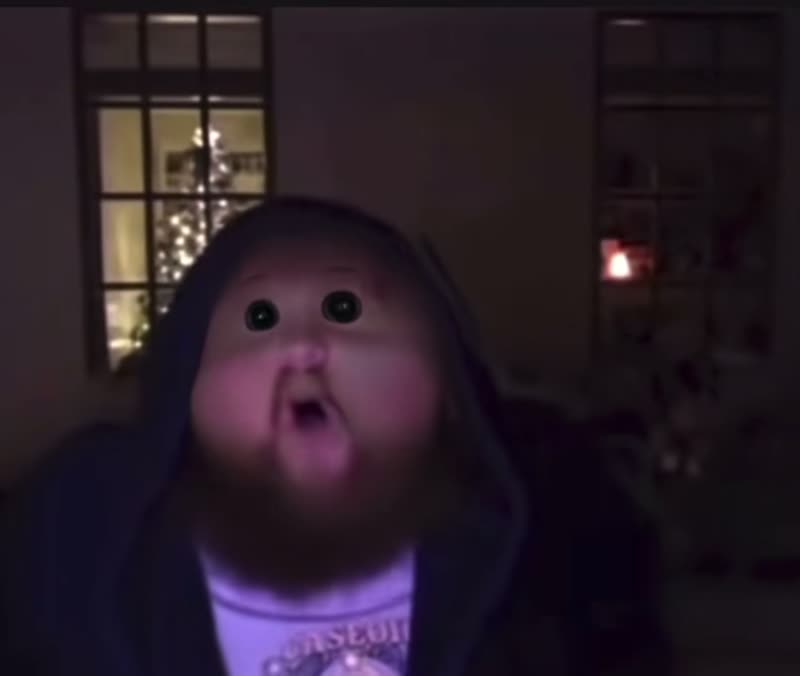
Reaction edit via MakeViral. Posted by @cam_6615, who credits @orink678 for the first post. Your photo guides both sides of the generated reveal.
Use a clear, front-facing photo of one adult, framed from the chest up. JPG, PNG or WebP · up to 20MB
$9.99 for one HD video or two at 480p · No subscription
Each result is a new AI video: likeness, details and motion can vary.
Private by default — never shown in a public gallery. My videos
Quick answer: Upload a clear, chest-up photo of one adult and choose a frame. The AI Baby Face Filter creates a six-second before-and-after MP4 with round cheeks, tiny eyes and generated sound. It runs in the browser with no editing app or prompt.
Original baby face filter clips
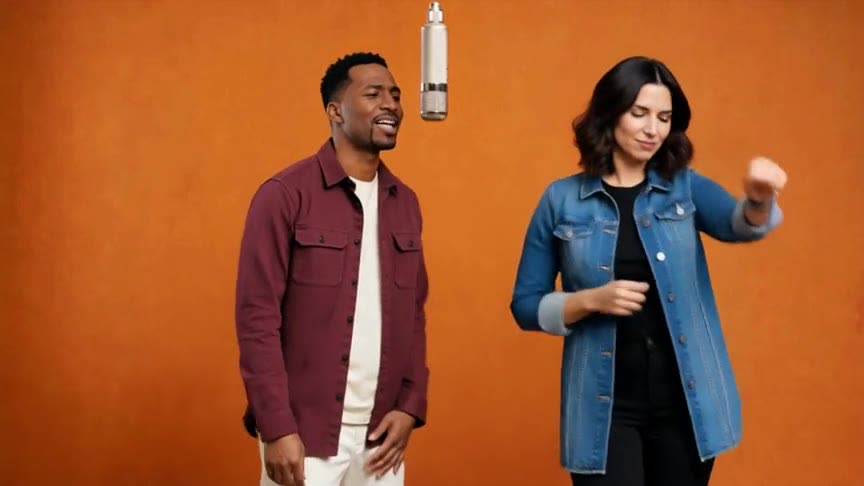
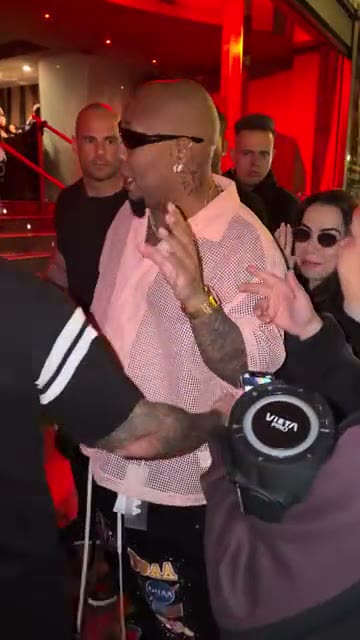
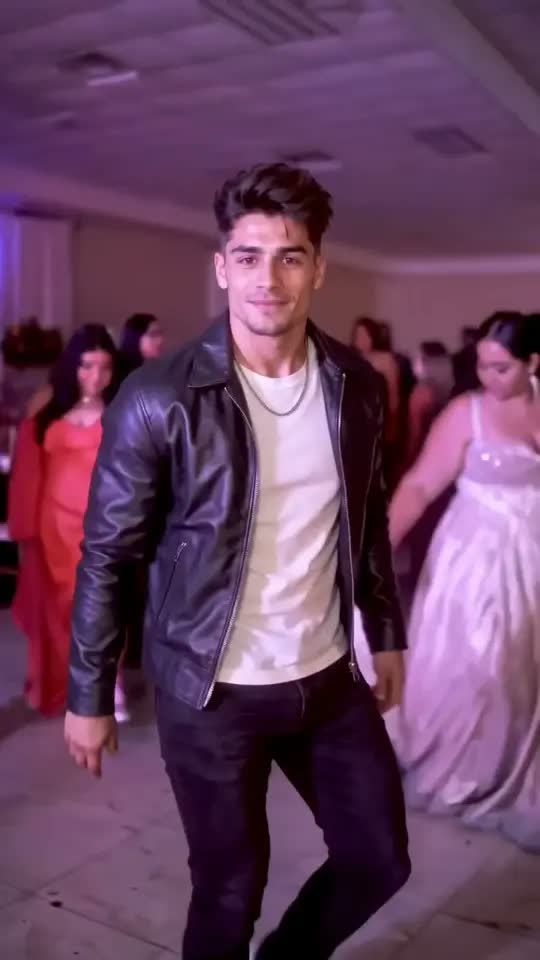
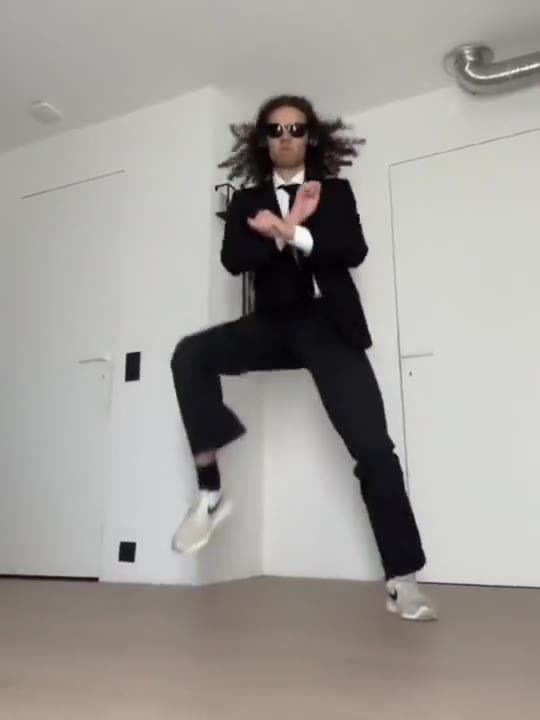
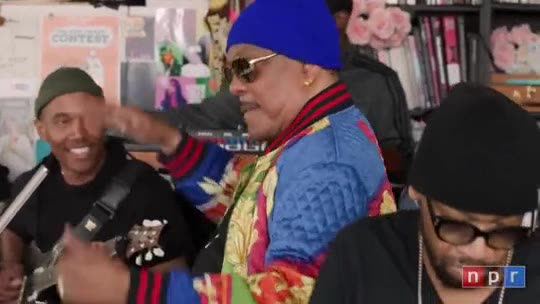
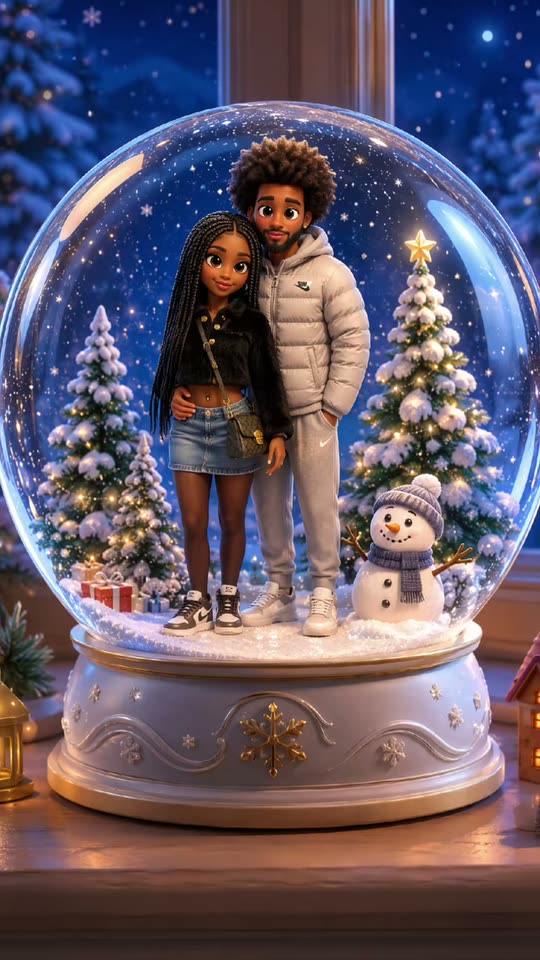
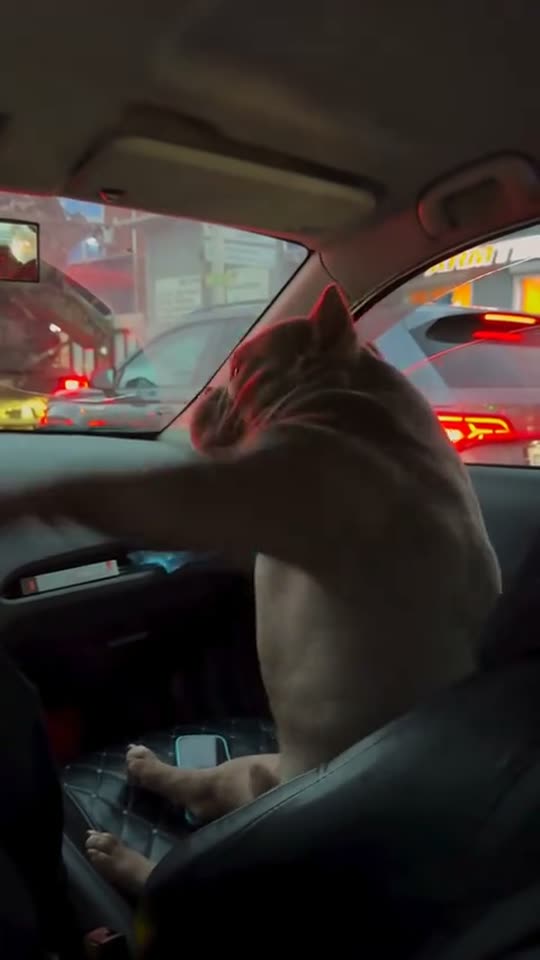
These creator clips show how the lens looks in a reaction video and a TV-scene edit.
How to make it
Take a chest-up portrait
Face the camera and give both cheeks even light. Keep your hair and any glasses visible.
Upload one adult photo
Open the Baby Face Filter generator and upload your own photo or one you have permission to use.
Pick a frame for the reveal
Use 9:16 for short-form video or 1:1 for a feed post. Center the face so both cheeks fit in the shot.
Watch the before and after
Download the six-second MP4 from My videos and check how the expression reads across the cut.
Photos that work best
Face the camera
Both cheeks should be visible for an even doll-face effect.
Use soft light
Hard shadows across the eyes can hide the features the model needs.
Leave room around your hair
Your hair and accessories help connect the two sides of the reveal.
Try a deadpan expression
A serious look makes the cut easier to read and gives the reveal more punch.
What is the baby face filter?
The viral doll-face look pairs oversized cheeks with small eyes and a tiny nose. Hair, clothes and the expression make the person recognizable and give the reveal its comic timing.
This template uses one portrait to build a short match cut. It aims to hold the same framing while the facial proportions change, then give the new expression time to register.
Think of the first shot as the setup. The viewer needs a moment to recognize the adult’s usual face before the cheeks widen and the eyes shrink. That is why a quiet background and a steady pose are useful. If the source photo shows a hand pressed against one cheek, the most important change happens behind that hand. Choose a photo where the outline of the lower face is easy to see, especially if the reveal will be watched in a small feed preview.
A still portrait gives the generator a single point of reference for both shots. Hair and clothing are cues that tell the viewer they are looking at the same person after the cut. Facial proportions are the point of the change. If you are comparing two photos for the effect, pick the one where that separation is clearest. A soft front-facing portrait with a distinctive hairstyle usually gives a viewer more to recognize than a close crop that shows only the nose, mouth and chin.
For a reaction edit, decide where the setup comes from before adding anything to the clip. When the previous shot already establishes what someone is reacting to, the filter reveal can follow immediately. If you are sharing the six-second clip on its own, a short first-shot caption can supply the context. Read it once at normal playback speed. If you are still reading when the face changes, shorten the line so the audience sees the transformation as it happens.
How the doll-face filter spread
- September 2026
MakeViral points to a TikTok from @chrisluvsrivals identifying the Snapchat lens as ggg11.
- November 2026
The effect appeared in reaction clips and remixes, including a scene from The Good Doctor edited by @tristanthetyranika.
- Also known as
ggg11 lens, doll baby filter and Cabbage Patch Kid face filter.
Sources
Ideas for your baby face reveal
Cut after a serious setup
Record your reaction separately and cut to the reveal as the punch line.
Use a familiar pair of glasses
A distinctive accessory helps friends recognize you after the face changes.
Trade reveals with a friend
Each of you can make a reveal from your own portrait, then share the results.
Post a short reaction
Keep the caption brief so the six-second reveal delivers the joke.
How to make the doll-face cut land
The joke depends on what viewers can recognize on both sides of the cut. A familiar pair of glasses, a straight face and the same shoulder angle give the viewer something to follow while the cheeks and eyes change. The examples use different setups for that same joke. One remixes a TV scene and the other uses a close-up reaction. The template puts the before and after into one six-second portrait clip.
Choose a photo based on the reaction you want to make. For a dry reaction, look straight at the camera with your mouth relaxed. For a more playful one, start with a small smile and keep your chin level. If you wear glasses, check that both eyes are visible through the lenses. Your expression is easier to match across the cut when the model has a clear view of your eyes and mouth.
Play the result once at the size you plan to post it. The cheek shape should change at a glance, and the person should still be recognizable from their hair, clothes or accessories. Then check that the camera angle and shoulder position make the change read as one continuous joke. When you watch with sound off, the moment of the transformation should still be clear.
If you want to react to something in real time, search Snapchat’s Lens Explorer for ggg11 by Do !! and record with the lens active. Use the AI Trend Video template when you already have a portrait and want a downloadable reveal to drop into an edit or send as a standalone clip.
FAQ
Can I use a baby or child’s photo?
This template is for adult portraits. Use a photo of yourself or an adult who agreed to appear.
Will my clothes change?
The template asks the model to retain the outfit, hair, pose and background. Fine details can shift.
Can I download the result?
Yes. Your six-second MP4 appears in My videos after generation.
How much does it cost?
A 480p video uses 1 credit and a 720p HD video uses 2. The one-time pack starts at $9.99 and covers two 480p videos or one HD video.
Is it free?
Watching the examples is free. Creating a video uses credits, and you can buy them in a one-time pack without a subscription. The generator shows the credit cost before you create.
Do I need to download an app?
No. It runs in your phone or computer browser — upload, create and download the MP4 to post on TikTok, Reels or Shorts.
What if the video fails or comes out clearly broken?
Failed generations return credits automatically. If a finished video has a clear defect, such as a missing subject, missing sound or a file that will not play, email support within 7 days from the address you signed in with. We return the credits for clear defects covered by the refund policy.
Who can see my photos and videos?
Nobody else. Photos and results are private to your account and never shown in a public gallery. Your photo is shared with our video provider only to process your request.
Is this official?
AI Trend Video is independent and has no affiliation with Snapchat, the ggg11 lens creator or the Cabbage Patch Kids brand.
Can I use my own clip instead of this trend?
Yes. With a monthly plan or the Mega pack, upload any clip you may use, pick 4–15 seconds and it becomes your own template with its original sound. Make your own template
Still have a question? support@aitrendvideo.net
More trends
All trends