Pixar Snow Globe AI Filter
Put yourself inside an animated Christmas snow globe with one photo.
- 1 photo
- 8 seconds
- Generated sound
Create · AI Snow Globe
READY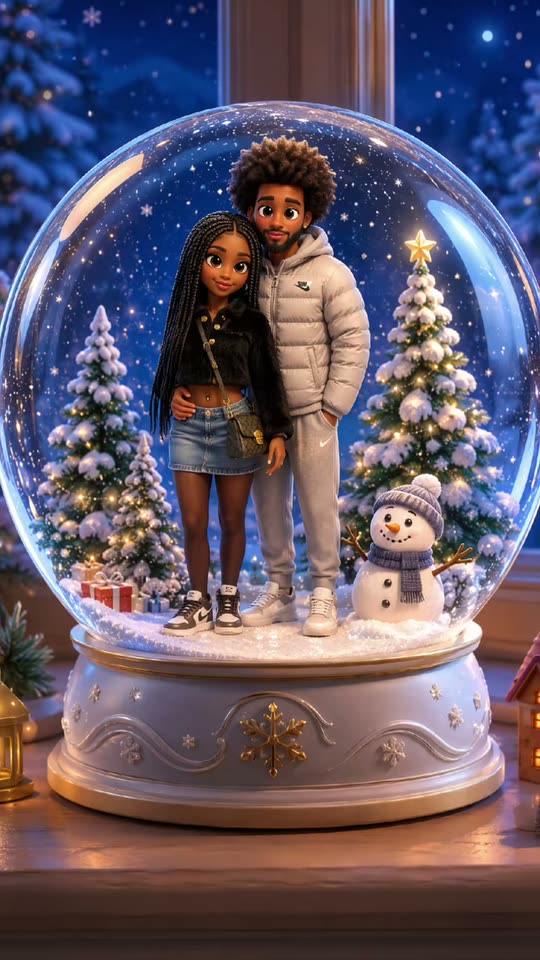
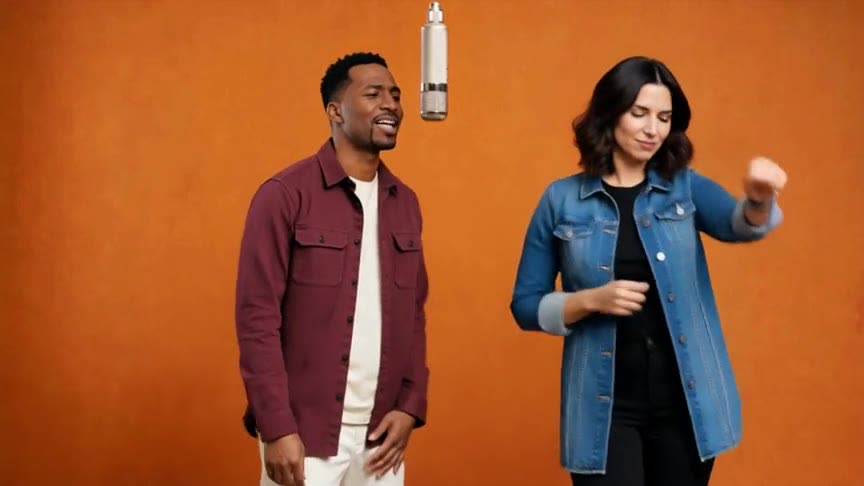
Example by @aitrenddrop via MakeViral. The reel cuts from a couple’s mirror selfie to two figures in a globe. Your clip opens on one miniature inside the globe, then pulls back to reveal the whole scene.
Choose a well-lit waist-up or full-body photo with one adult clearly visible. JPG, PNG or WebP · up to 20MB
$9.99 for one HD video or two at 480p · No subscription
Each result is a new AI video: likeness, details and motion can vary.
Private by default — never shown in a public gallery. My videos
Quick answer: Upload one clear photo of an adult and choose a frame. The AI Snow Globe template makes an eight-second MP4 with a 3D miniature based on your photo, falling snow and generated sound. Create it in your browser without writing a prompt.
How to make it
Pick a well-lit portrait
Choose a waist-up or full-body photo with your face and outfit clearly visible.
Upload one portrait
Open the AI Snow Globe generator and upload one adult portrait.
Frame the globe
Use 9:16 for a story or Short, 1:1 for a square card or 16:9 for a landscape greeting.
Download your snow globe
Find your eight-second MP4 in My videos and check the figure and glass edge before sharing.
Photos that work best
Light your face from the front
A bright window gives the miniature a clearer face and hairstyle.
Leave space around your shoulders
A tight face crop gives the model little clothing detail to work with.
Choose a recognizable color
A red scarf or green sweater reads well when the figure is small.
Keep one person in frame
A solo photo gives the generator one clear subject for the globe.
How the AI snow globe effect works
In the snow globe trend, a familiar outfit and hairstyle show up on a miniature standing in a tiny winter scene. A pullback reveals the glass dome, its base and the lights around the figure.
This version builds an original animated miniature from a single portrait. The figure waves while snow drifts at different depths, and the final frame shows the entire globe.
Decide which detail should tell the viewer who is in the globe. If someone always wears red glasses, find a portrait where the frames stand out from their hair. If the outfit is the reason for making the clip, such as matching pajamas for a family greeting, capture enough of it to show the pattern and colors. A bold stripe or a familiar silhouette stays readable as the camera pulls back. Fine details like a name badge or a line of embroidery can get lost.
Choose the aspect ratio for the final wide shot. For a vertical greeting, the dome and pedestal can sit on top of one another with room above for snow. For a landscape greeting, the table and space to either side of the dome can help establish that the figure is inside a small object. If you plan to add a name or greeting, pick the format first so you can see where the text will fit around the finished clip.
The background of your portrait is there to help the subject stand out. The tabletop, tree and glass are generated for the winter scene. A holiday photo with decorations crossing someone’s shoulders can make it harder to read the outline of their outfit. A photo of the same person against a plain wall gives the AI a cleaner view, even when the wall itself has nothing festive about it.
Read the guide: How to Make a Christmas Snow Globe Video From a Photo
Where the AI snow globe trend came from
- April 2025
A snow globe prompt shared on X by @balconychy placed people from a photo inside a miniature 3D winter scene.
- November 2026
MakeViral documents a TikTok by @aitrenddrop that puts a couple’s mirror selfie inside a holiday globe.
- Also known as
Pixar snowglobe filter, Christmas snow globe filter and CapCut snow globe trend.
Sources
Ways to share your snow globe
Send a moving holiday card
Add a short greeting alongside the clip in your message.
Show off a festive sweater
Add your portrait before the generated clip to show how the outfit carries over to the miniature.
Make a matching set
Create a separate globe for each adult friend with their OK.
Use a square version in your feed
Choose 1:1 in the generator when the clip will sit next to square holiday photos.
What makes the snow globe reveal work?
The clip starts close enough to see the miniature’s face and ends far enough back to show the glass dome and its base. The change in scale is the reveal. The tree gives you a point of reference inside the globe, and snow drifting in front of and behind the figure gives the tiny scene depth. The template calls for a single pullback, with a small wave as the main movement.
For a photo-to-globe edit, place your portrait immediately before the generated clip. Cut from a recognizable feature in the photo, such as a bright scarf, to that same feature on the miniature. Then let the camera pullback play through. The audience gets two discoveries in order: who the figure is and how small the world around them has become.
If you’re choosing between a close selfie and a wider photo, look first at what makes the person recognizable. A waist-up portrait can show curly hair, glasses and a patterned scarf in the same frame. A full-length shot makes sense when the outfit is the point, such as matching pajamas or a winter coat with bright boots. Check that you can still see the face clearly at phone size before uploading the wider shot.
When the clip finishes, check the opening and ending separately. In the opening, look for a recognizable face or outfit. By the end, look for a clear glass outline and space around the base. For a holiday greeting, put your text beside the globe or on a separate end card. Text across the glass can hide the face and the snow that make the reveal worth watching. If you’re sending it as a message, the greeting can go in the message itself so the video opens right on the miniature.
FAQ
Can I put two people inside one globe?
This template takes one adult portrait and creates one figure per clip.
Will it keep my outfit?
The AI uses your outfit and colors as a guide. Small details like lettering and jewelry can vary.
Does it have sound?
The template requests gentle ambience and a short chime. Sound can vary from one generation to another.
How much does it cost?
A 480p video uses 1 credit and a 720p HD video uses 2. The one-time pack starts at $9.99 and covers two 480p videos or one HD video.
Is it free?
Watching the examples is free. Creating a video uses credits, and you can buy them in a one-time pack without a subscription. The generator shows the credit cost before you create.
Do I need to download an app?
No. It runs in your phone or computer browser — upload, create and download the MP4 to post on TikTok, Reels or Shorts.
What if the video fails or comes out clearly broken?
Failed generations return credits automatically. If a finished video has a clear defect, such as a missing subject, missing sound or a file that will not play, email support within 7 days from the address you signed in with. We return the credits for clear defects covered by the refund policy.
Who can see my photos and videos?
Nobody else. Photos and results are private to your account and never shown in a public gallery. Your photo is shared with our video provider only to process your request.
Is this official?
AI Trend Video is independent and has no affiliation with Pixar, Disney or CapCut.
Can I use my own clip instead of this trend?
Yes. With a monthly plan or the Mega pack, upload any clip you may use, pick 4–15 seconds and it becomes your own template with its original sound. Make your own template
Still have a question? support@aitrendvideo.net
More trends
All trends